Web UI
The Grackle web UI is a real-time dashboard for managing environments, workspaces, tasks, and agent sessions. It's served by the Grackle server at http://localhost:3000 by default.
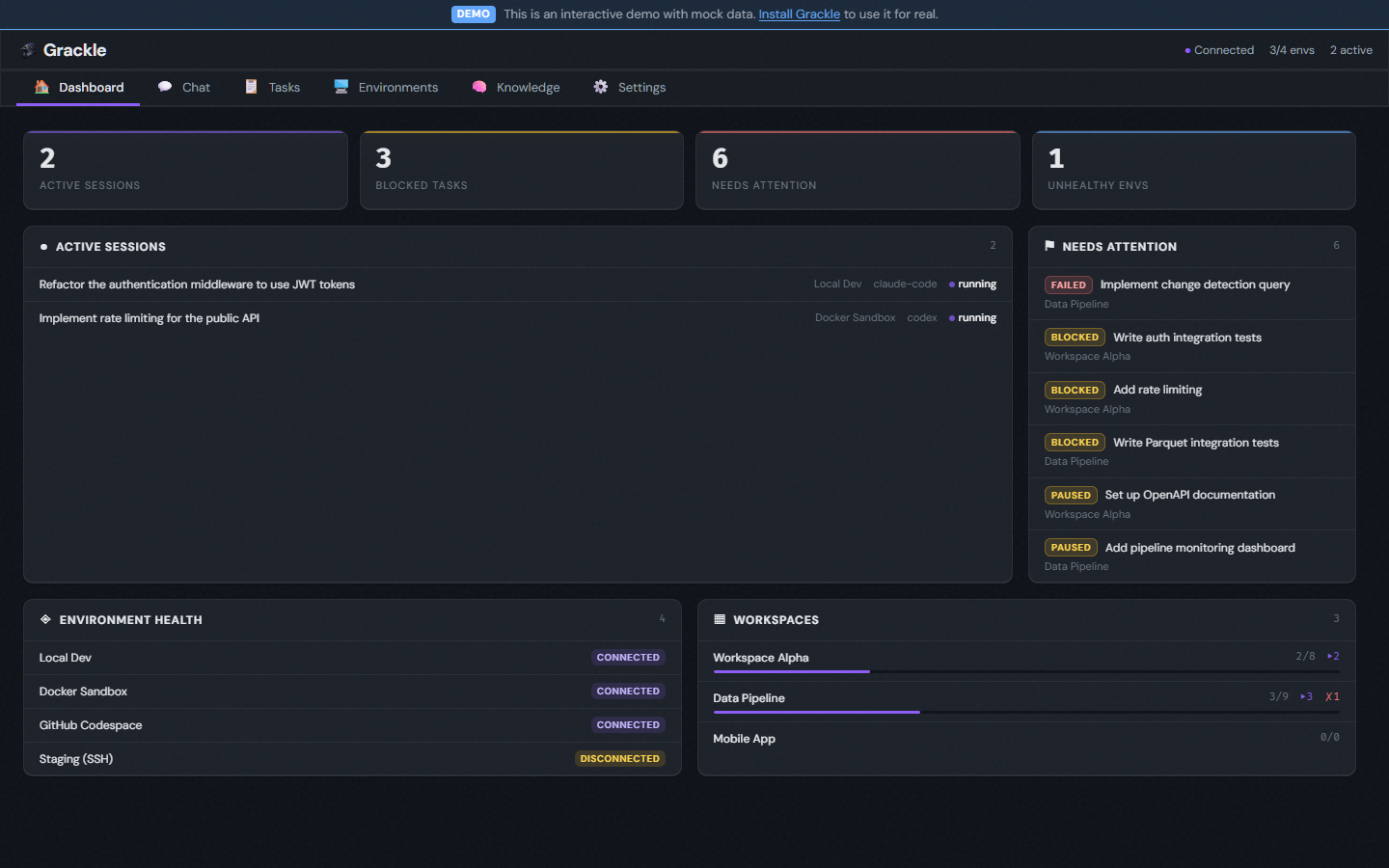
First-run setup
On first launch, a setup wizard walks you through:
- Welcome — Brief introduction
- About — What Grackle does
- Runtime selection — Pick your default agent runtime (Claude Code, Copilot, Codex, or Goose)
This creates your default persona and drops you into the chat interface. You won't see the wizard again.
Pairing
The web UI requires authentication. Generate a pairing code from the CLI:
grackle pair
Enter the 6-character code in the browser, or scan the QR code from your phone. The session lasts 24 hours.
Chat landing page
The default landing page is a chat interface where you can type natural language commands. The agent uses Grackle's MCP tools to manage environments, tasks, sessions, and more — no CLI memorization required.
Sidebar
The left sidebar shows:
- Workspaces — Click to see a workspace's tasks, board, and graph views
- Quick actions — Create new workspaces, tasks, or sessions
Workspace view
Each workspace has three tabs:
Tasks tab
A searchable list of all tasks in the workspace with status badges, branch names, and dependency info.
Board tab
A kanban board with columns for each status: Not Started, Working, Paused, Complete, Failed. Shows task completion progress.
Graph tab
An interactive DAG (directed acyclic graph) visualization showing task hierarchy and dependencies. Click any node to see its stream, findings, or overview.
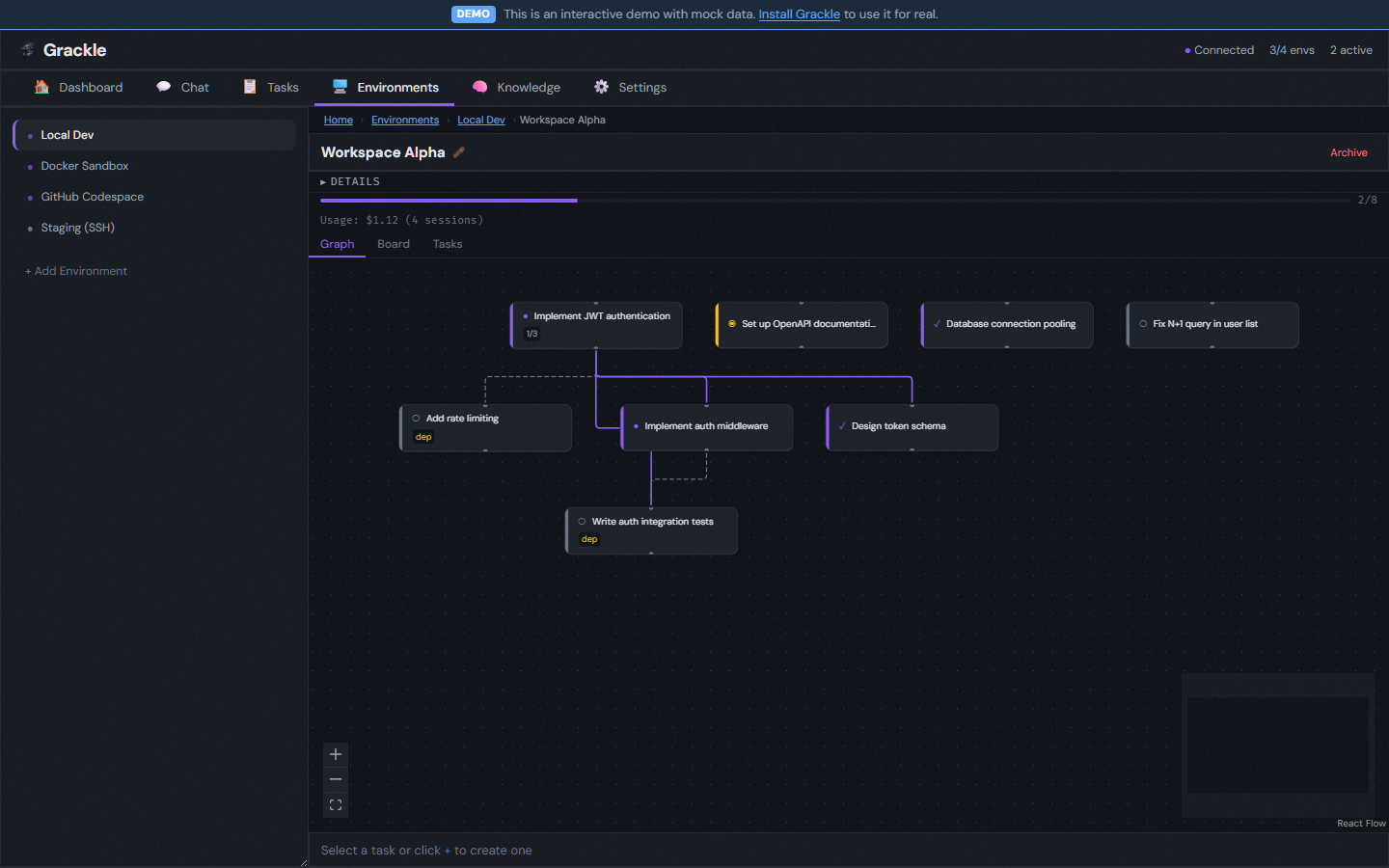
Task view
Clicking a task opens a full-page detail view with click-to-edit fields:
Overview
- Status badge and metadata (branch, environment, persona, timestamps)
- Description, title, and all fields are inline editable — click any field to edit, press Enter to save, Escape to cancel
- Token usage tracking
- Action buttons: Start, Complete, Resume, Delete
Stream
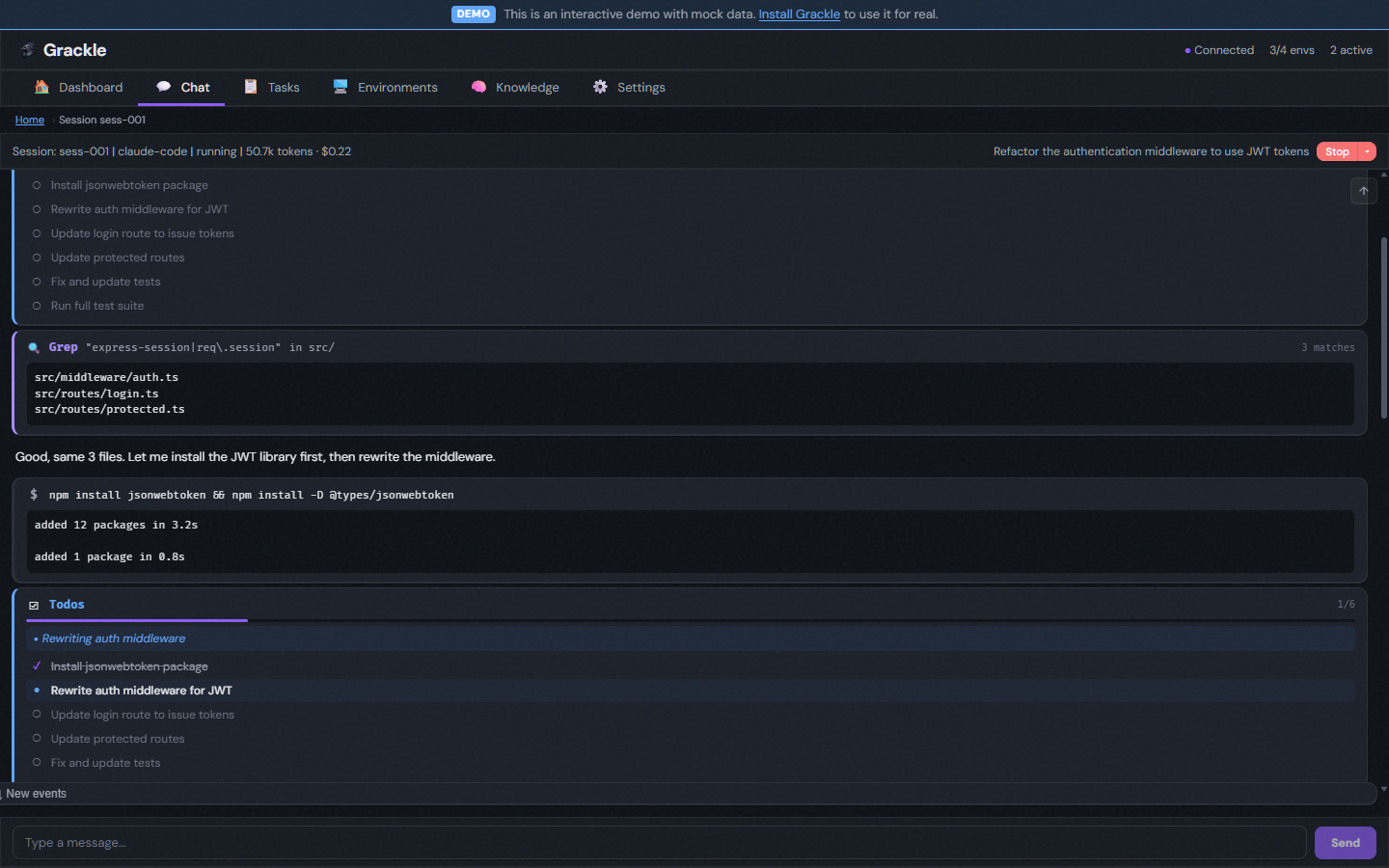
Real-time event feed from the task's latest session. Shows:
- Agent text output
- Tool calls with specialized cards (file edits show diffs, grep shows matches, bash shows output)
- Tool results (collapsible)
- Status changes and system messages
When the session is waiting for input, an input field appears at the bottom.
Findings
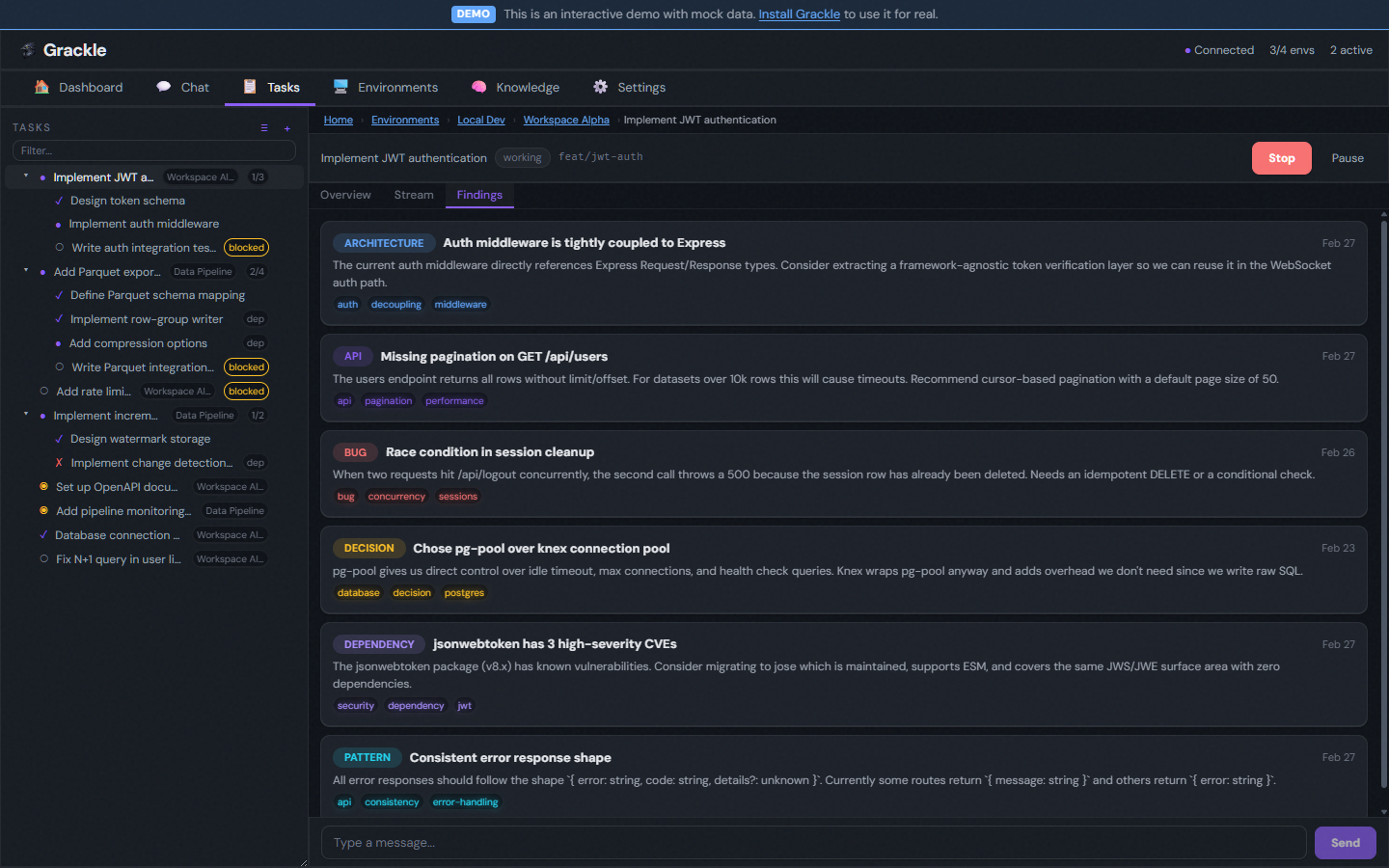
All findings for the task's workspace, displayed as categorized cards with color coding by category (bug, architecture, decision, pattern, dependency) and tags.
Creating and editing entities
Grackle uses a unified create/edit pattern across all entity types (workspaces, tasks, personas, environments):
- Edit mode: Full-page view with click-to-edit fields. Each field auto-saves on blur or Enter. Escape cancels.
- Create mode: Same page layout, but all fields start in edit mode with a "Create" button. After creation, the page transitions to the edit URL.
This consistent pattern works the same whether you're creating a task, editing a persona, or configuring an environment.
Settings
The settings page has tabs for:
Environments
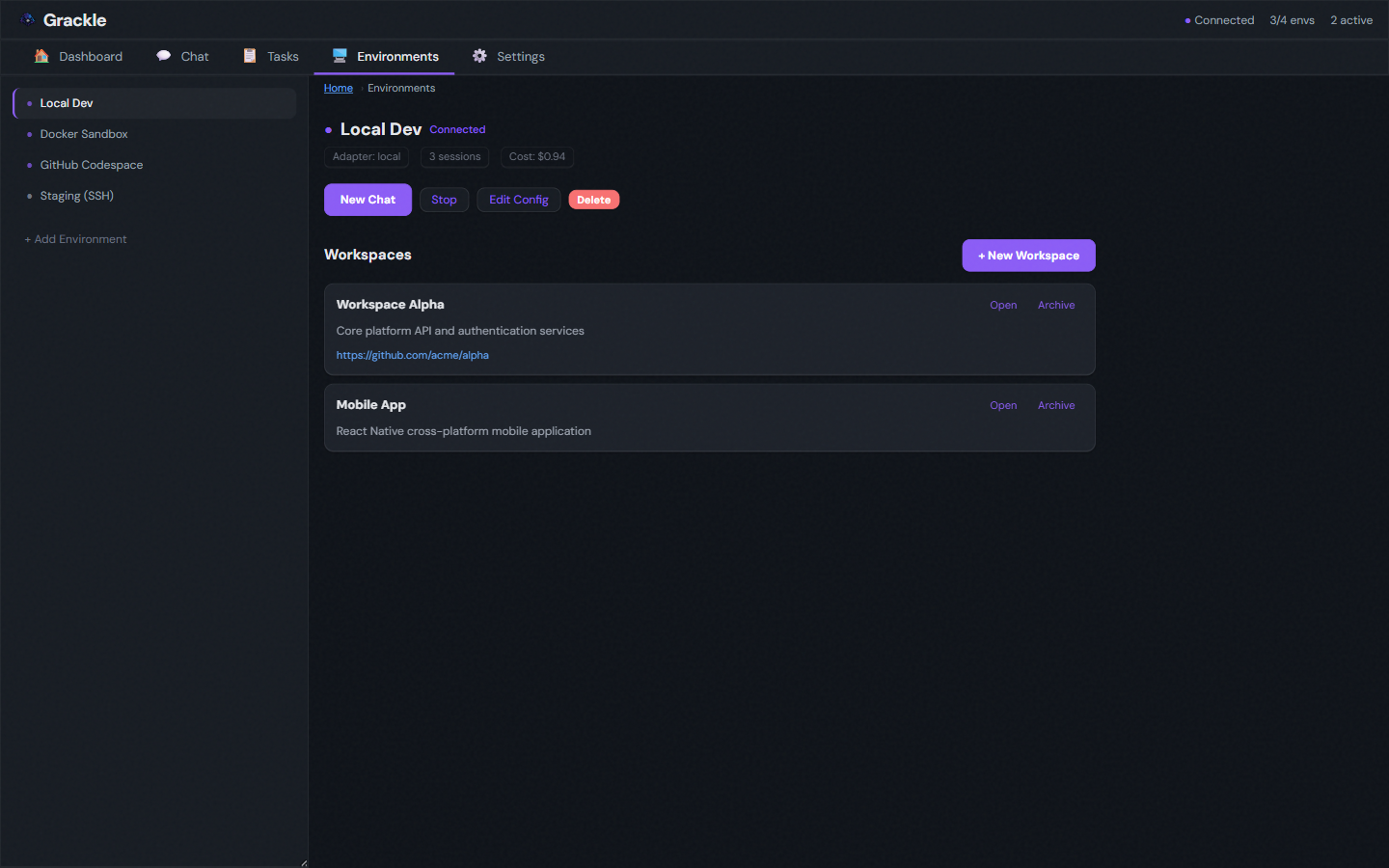
List, add, and manage environments. Shows status, adapter type, and session count. Full create/edit forms for each adapter type (Docker, SSH, Codespace, Local).
Credentials
Configure credential providers (Claude, GitHub, Copilot, Codex, Goose) and manage encrypted tokens.
Personas
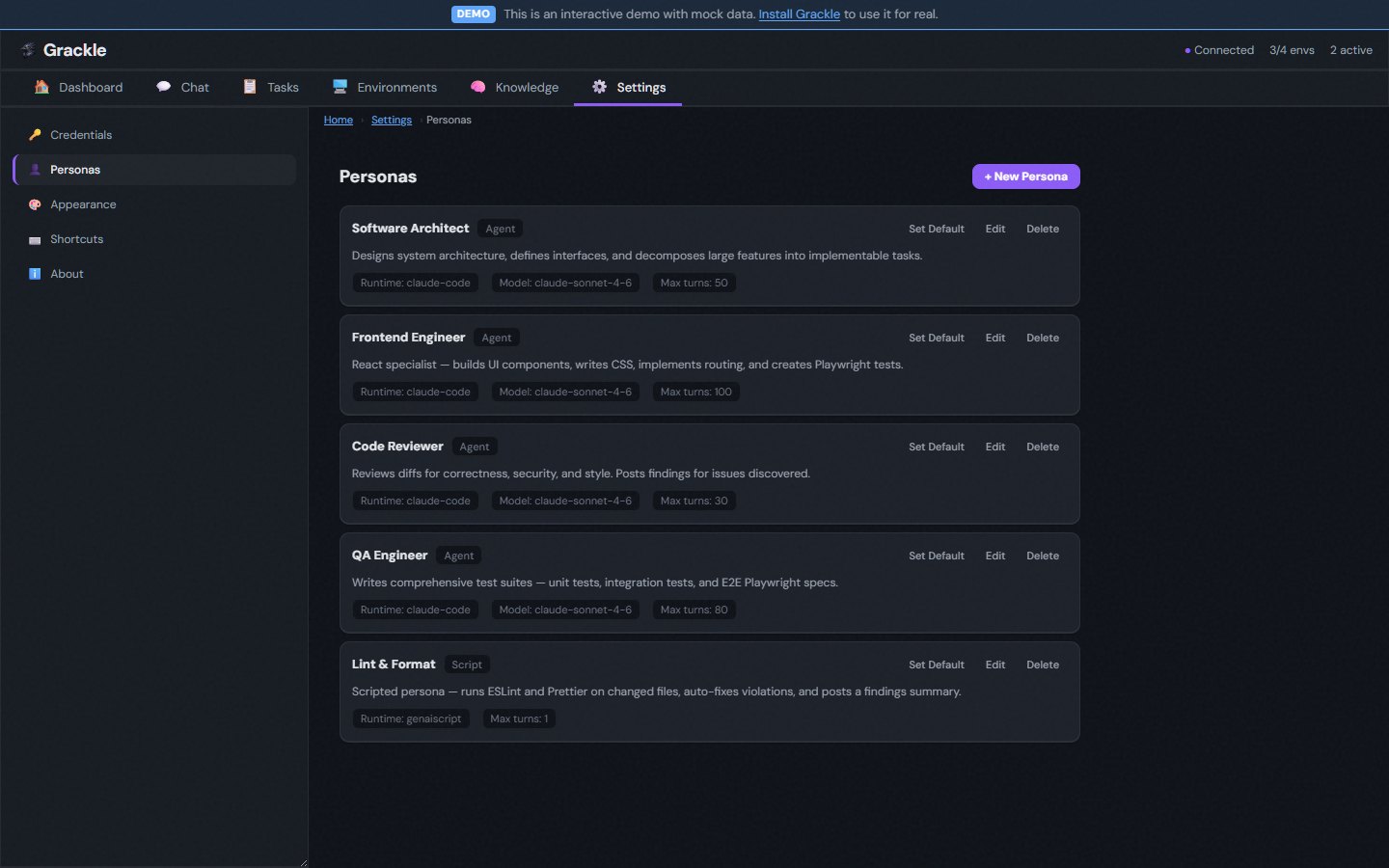
Create, edit, and manage agent personas. Each shows its runtime, model, max turns, system prompt, and MCP tool permissions.
Appearance
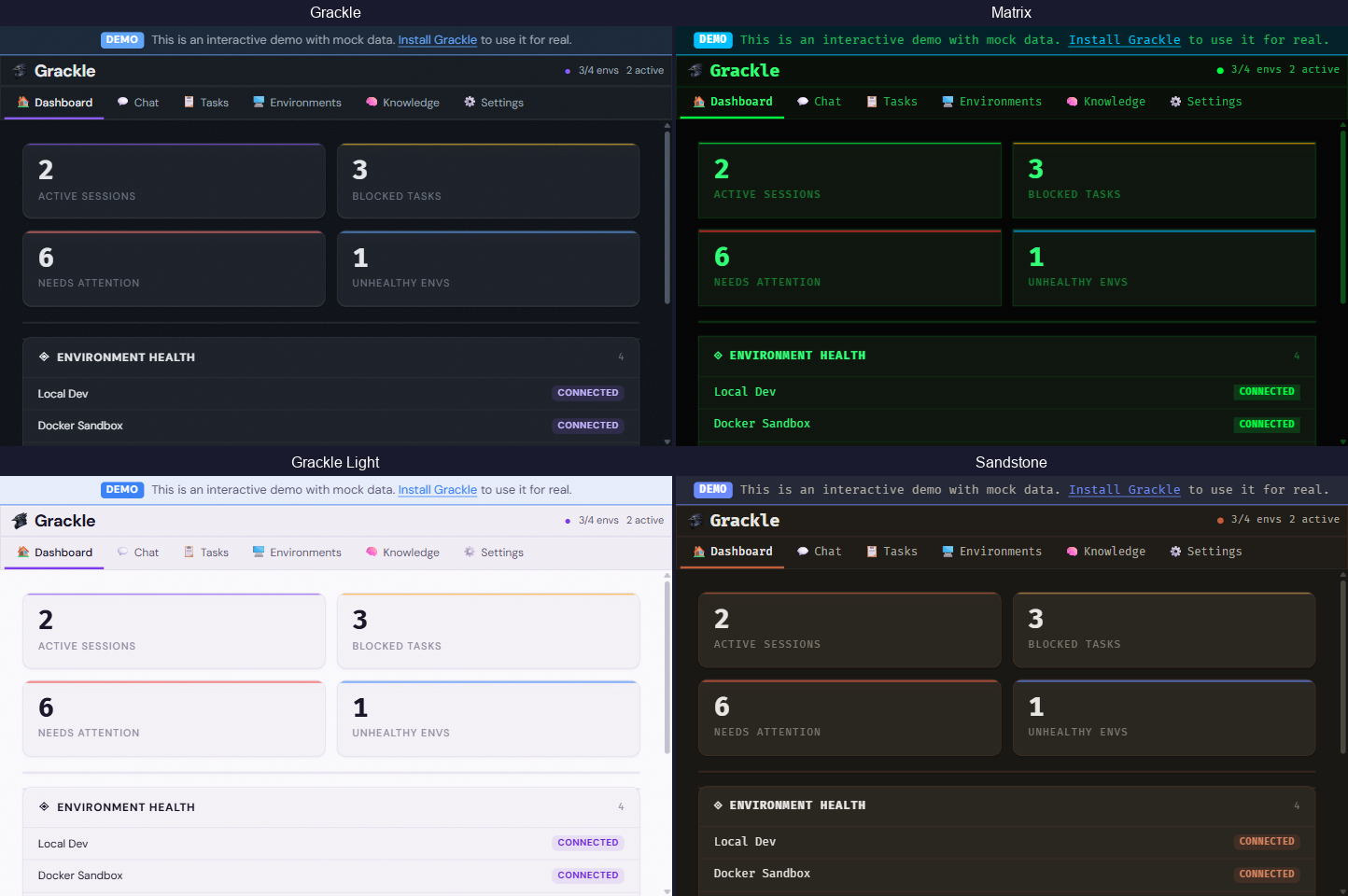
Theme selection with 10 built-in themes.
About
Version information and links.